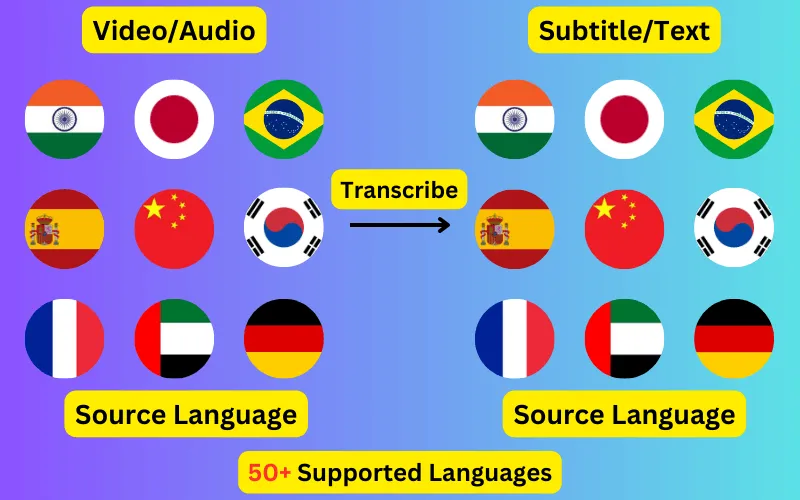
Upload the video or just its audio, get a timed transcript you can correct line by line, and download an SRT ready to attach to the video in YouTube Studio.
How to add subtitles to a YouTube video
Generate the file here and download it as SRT. Then in YouTube Studio, open Content, choose the video, and go to Subtitles. Add a language if the one you want is not listed yet, choose to upload a file, and pick the option for a file that already has timings - that is what an SRT is. YouTube reads the timestamps out of it and the subtitles line up against the video without any further alignment.
The uploaded track replaces the automatic one for that language. Viewers see your wording, your punctuation and your line breaks rather than a machine transcript, and the caption button on the player switches it on.
Why not just leave it to YouTube's automatic captions
Automatic captions are a reasonable floor and a poor ceiling. They punctuate loosely, they break lines in the wrong places, and they lose exactly the words a viewer most needs - proper nouns, brand names, technical terms, anything said quickly or over background noise, and most accents that are not the one the model was tuned on.
They also cannot be fixed where it counts. A viewer watching without sound reads whatever the machine heard, and the error rate is highest on the vocabulary that carries the meaning of the video. Correcting the transcript once here and uploading it fixes it permanently and for everyone.
Subtitles the platform can read
The text of an uploaded subtitle file is text YouTube has about your video, alongside the title, description and tags. It is a fuller and more specific account of what is actually said than any of those, and unlike the automatic transcript, it is the version you wrote.
It also matters outside YouTube. A video with an accurate subtitle track is one you can quote from, cut clips against, and turn into a written post without transcribing it a second time - the TXT export from the same job gives you the transcript with the timings stripped out.
Subtitles in a second language
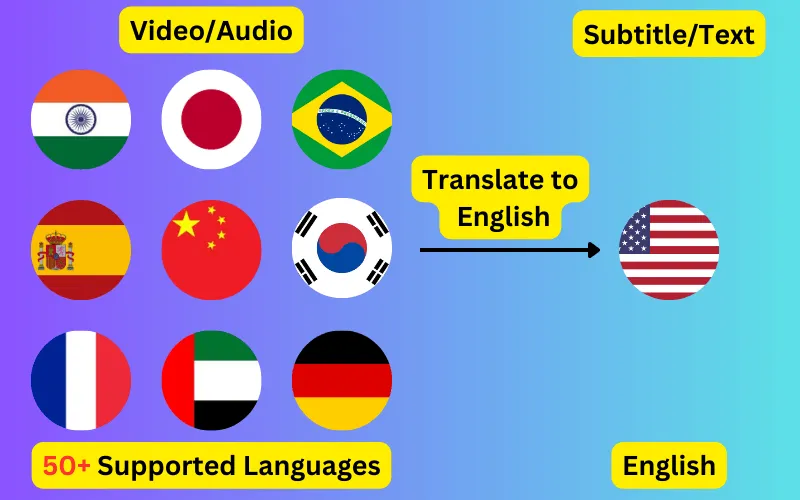
A video can carry one subtitle track per language, and each one widens the audience that can watch it. Subtitles can be generated in the language that is spoken or translated into any of the 76 supported ones, and each track downloads as its own SRT to upload against its own language in Studio.
SRT, VTT or plain text
All three come out of the same job. SRT is what YouTube Studio expects and what most editors import. VTT is the web standard, used by the HTML video element and by most players embedded in a page. TXT is the transcript on its own, without timings, for show notes, a blog post or a summary.
Transcribe
Transcribe Your Video/Audio Automatically, then add the subtitles to your video or export them as SRT/VTT/text.
SRT is the safe choice and what downloads here by default; YouTube also takes VTT and several older formats. Upload it as a file that already has timings rather than as a plain transcript, so YouTube uses the timestamps in the file instead of trying to align the words to the audio itself.
Will this replace the automatic captions on my video?
For the language you upload it against, yes - your track becomes the one viewers see. Automatic captions in other languages are unaffected, and you can upload a separate file for each language you want to serve.
Can I correct the text before downloading?
Yes, and it is worth doing. The editor shows the transcript line by line against the audio, so names and technical terms can be fixed, lines split or merged, and timings nudged. Splitting happens on real word boundaries, so both halves keep the true timings of the words they contain.
Do I need to upload the whole video?
No. Only the audio is needed to produce subtitles, so extracting the audio track first makes for a much smaller upload and a faster result. Video files are accepted too, and the audio is taken from them.
How long can the video be?
The free allowance covers files of up to 120 seconds, 3 a day without an account and 5 with a free one. Full-length videos need a plan, from 10 a month for 300 credits at 1 credit per minute.
Is a subtitle file the same as burned-in captions?
No. A subtitle file sits alongside the video and the viewer switches it on; burned-in captions are drawn into the picture and are always visible. YouTube accepts a subtitle file for ordinary videos, which is what this page produces. For captions styled into the frames of a Short, use the Shorts caption generator instead.